Three checks to try
Keep your Alexa and SmartLife apps handy. Your device names may differ from the examples below.
Check the routine
Open Alexa → More → Routines. Find the routine that should ring your chime and check both sides:
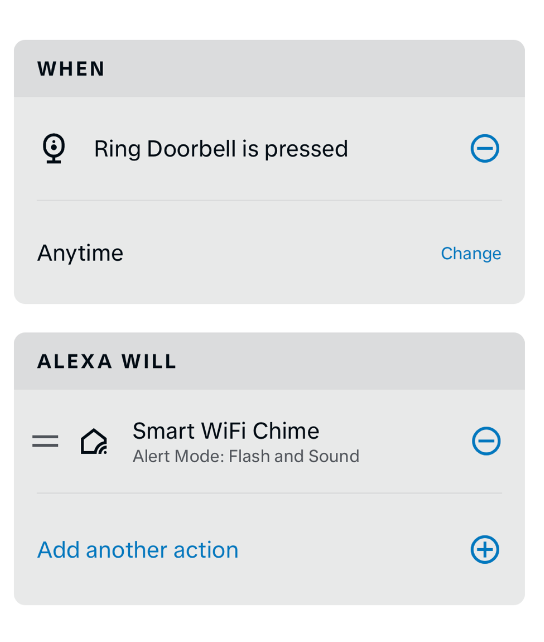
“Ring Doorbell” is only the example shown here. In your routine, select your own doorbell under WHEN. Under ALEXA WILL, select your Tythonic chime and its alert mode.
Save any changes, then press your doorbell to test.
Alexa routine helpCheck your doorbell skill
In Alexa, open More → Skills & Games. Search for your doorbell brand’s skill and open its settings.
In Skill Settings → Account Linking, look for Linked. These Ring and Blink screenshots show what success looks like. Your brand’s screen may look different.
If your skill is not linked, connect the account used by your doorbell. Once linked, continue to the SmartLife check.
Alexa skill helpCheck the SmartLife link
Open SmartLife and follow this path to your Alexa connection:
- 1MeBottom menu
- 2Third-party devices & services
- 3Alexa
Look for the message “SmartLife” skill has been linked. If it is missing, connect the SmartLife account that contains your chime.
When both accounts are linked, press your doorbell again to test the full routine.
Press your doorbell once more. If your chime still stays quiet, send us a screenshot of your routine and we’ll help.
Still quiet? We’re here.
Send us your order number and a screenshot of your Alexa routine. We’ll help you through the setup.
Chat on WhatsApp Prefer email? Email our support team ↗